
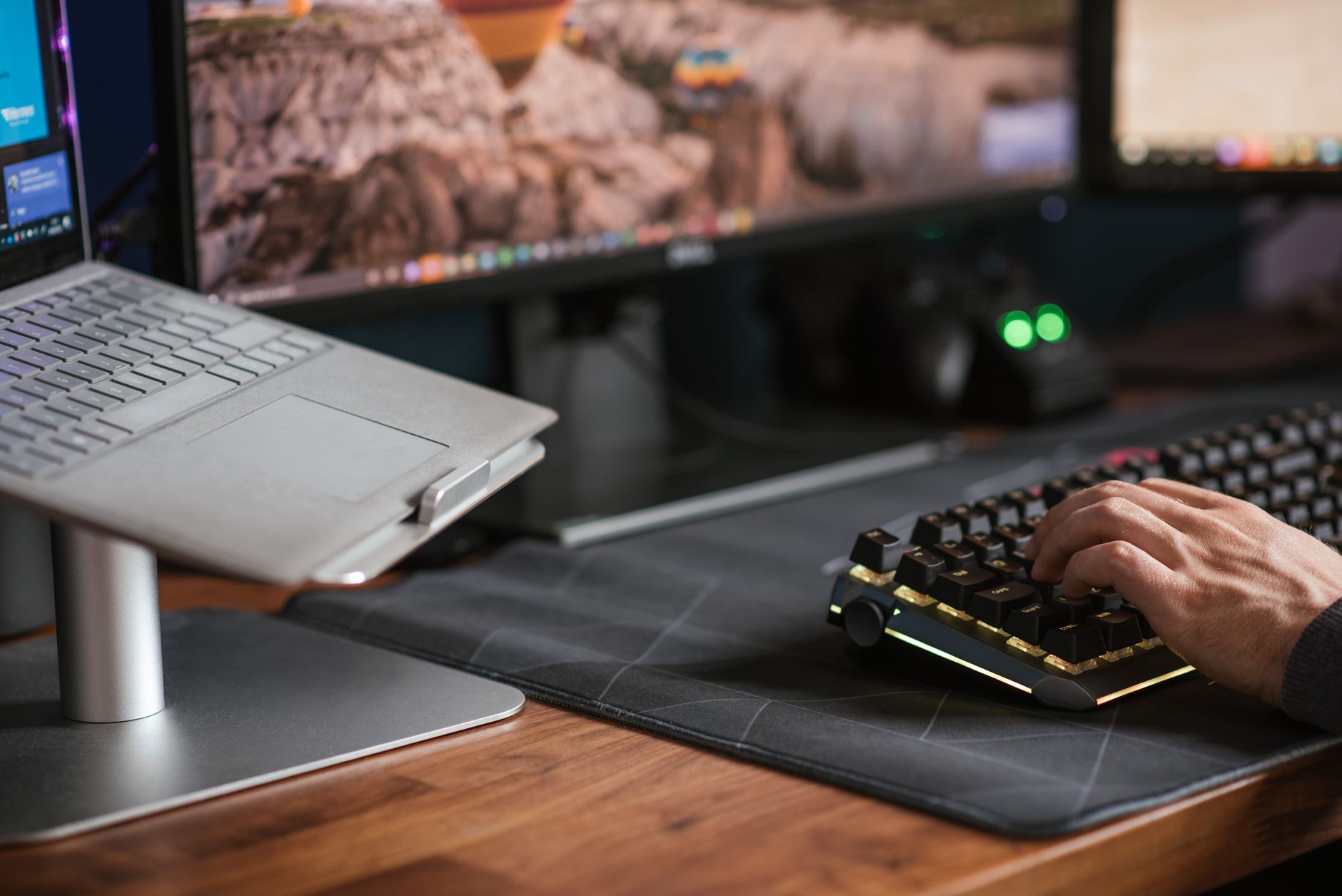
You spend eight, ten, twelve hours a day at your desk. Your keyboard is in your hands the entire time. So why are most entrepreneurs still typing on the mushy chiclet board that came with their laptop, or the $15 membrane keyboard they grabbed off the shelf without thinking?
A good mechanical keyboard is not a luxury. It is a tool that affects your typing speed, your accuracy, your comfort, and honestly, how much you enjoy sitting down to work. Once you go mechanical, you will not go back.
This guide breaks down the three main switch types (tactile, clicky, and silent), walks through the best options at every price point, and helps you figure out which keyboard actually fits how you work.
Mechanical vs Membrane: Why It Matters
Membrane keyboards use a rubber dome system under each key. They are cheap to make, quiet-ish, and feel mushy. You get no real feedback when a keypress registers, which means your fingers tend to bottom out every stroke. Over a full workday, that repetitive impact adds up.
Mechanical keyboards use individual switches under each key. Each switch has a defined actuation point, a predictable travel distance, and a consistent feel. You know exactly when the keypress registers. Your fingers can stop there instead of slamming to the bottom. The result is less fatigue, faster typing once you adjust, and a much more satisfying experience overall.
The tradeoff is price and, depending on switch type, noise. But both of those are very manageable.
Understanding the Three Switch Types
Tactile Switches (The Daily Driver)
Tactile switches give you a small bump you can feel at the actuation point, but no audible click. Brown switches are the most popular tactile variety. They are the middle-ground switch: quieter than clicky, more feedback than linear, office-friendly, and easy to adapt to. If you are new to mechanical keyboards or you share an office, start with tactile.
Cherry MX Brown and Gateron Brown are the reference points. Gateron is slightly smoother and, depending on where you buy, often cheaper. Both are excellent.
Clicky Switches (Best Feel, Loud)
Clicky switches make an audible click at actuation. Cherry MX Blue is the classic example. The feedback is excellent and many typists prefer it for long writing sessions. The problem is that click carries. If you are on video calls, work near other people, or just prefer not to sound like you are typing on a typewriter at full volume, clicky is not the right call for a primary work keyboard.
They are fantastic for a dedicated home office where you are alone. If that is your setup, you will love them.
Silent Switches (Office and Call Friendly)
Silent mechanical switches use dampening pads inside the switch housing to eliminate most of the sound. Cherry MX Silent Red and Gateron Silent switches are the main players. You still get the mechanical action and a reasonably consistent feel, but the noise drops dramatically. Some people feel they sacrifice a bit of the crisp mechanical experience, but if you are on calls all day or in a shared space, they are the right move.
Budget Pick: Keychron K2 ($75–$100)
The Keychron K2 is the most recommended first mechanical keyboard for a reason. It is compact (75% layout, so it keeps arrow keys but drops the numpad), available in multiple switch options including Gateron Brown, Red, and Blue, and it connects both wired and over Bluetooth. For $75–$100 depending on the version, it is hard to beat.
Build quality is solid for the price. The aluminum frame version runs closer to $100 and feels noticeably more premium. If you plan to keep this keyboard for years, go aluminum. The hot-swap versions let you swap switches later without soldering, which is a nice bonus if you want to experiment.
It works well on Mac and Windows, has a physical toggle to switch between layouts, and the RGB lighting (on the backlit version) is bright and functional without being a distraction.
Best for: First mechanical keyboard buyers, hybrid Mac/Windows users, anyone who wants Bluetooth without spending $150+.
Mid-Range Pick: Logitech MX Mechanical ($130–$160)
If you want something with a cleaner office aesthetic and a brand name you already trust, the Logitech MX Mechanical is worth a look. It uses Kailh switches (available in clicky, tactile, and quiet variants), connects over Logi Bolt USB or Bluetooth to up to three devices, and is genuinely comfortable for long typing sessions.
What Logitech does well is software integration. MX Options lets you remap keys, set up macros, and manage device switching through a clean app. If you run a multi-device setup (desktop and laptop, for instance), the one-button device switching is useful daily.
The keycaps are nice, the low-profile design bridges mechanical and laptop-style typing, and the battery life is excellent. Some mechanical enthusiasts dislike the low-profile switches because they have a slightly different feel than standard height switches. If you have used full-height mechanical keyboards before and loved them, compare before buying. For someone coming from a laptop keyboard, the low-profile version will feel like a massive upgrade.
Best for: Multi-device users, people who want Logitech’s ecosystem, and anyone who wants the mechanical feel with a slimmer profile.
Premium Pick: Das Keyboard 4 Professional ($169–$199)
The Das Keyboard 4 Professional has been a go-to recommendation for power users for years. It uses Cherry MX switches (your choice of Brown or Blue when ordering), has a full aluminum top panel, and is built to last. This thing is heavy, which sounds like a negative until you realize it means the keyboard does not move around on your desk no matter how hard you type.
There is a two-port USB 3.0 hub on the back, which is a small but genuinely useful feature for a desk setup. The media controls and volume knob are practical daily-use additions. The PBT keycaps are thick and do not develop that shiny worn look that cheaper ABS caps get after a year of use.
Das Keyboard does not try to be flashy. There is no RGB lighting on the standard Professional model. It is a tool-focused keyboard designed for people who want something reliable, comfortable, and built to last a long time. At $169–$199, it is the kind of purchase you make once and do not think about for the next five years.
Best for: Heavy typists who want a full-size layout, people who value build quality over features, and anyone who prefers a no-nonsense design.
Worth Mentioning: Happy Hacking Keyboard (HHKB) Professional Hybrid ($220–$250)
The Happy Hacking Keyboard Professional Hybrid is a different category. It uses Topre electrostatic capacitive switches, which are not traditional mechanical switches but have a cult following among writers and programmers. The feel is often described as smoother than typical mechanicals, with a very satisfying thud rather than a click or bump.
It is compact, very well built, has Bluetooth for multi-device use, and is the kind of keyboard that people who have one tend to keep for a decade. The price reflects that. It is also an acquired taste. If you can try one before buying, do. The layout takes adjustment (no dedicated arrow keys). But for the right person, especially writers who sit at a keyboard for long stretches every day, it is genuinely special.
Practical Considerations Before You Buy
Size and Layout
Full-size keyboards include the numpad. Useful if you do a lot of data entry, but they push your mouse far to the right and widen your reach. TKL (tenkeyless) drops the numpad. 75% layouts also remove a few edge keys but keep the arrows. 65% and 60% boards are compact and popular with travel setups but have a steeper learning curve for navigation.
For most entrepreneurs: TKL or 75% gives you the best balance of compactness and usability.
Noise in Shared Spaces
If you share an office or take calls at your desk, go tactile (brown) or silent. Clicky switches will be heard clearly on video calls and will not make you popular with the people nearby. You can always add an o-ring dampener kit to reduce bottoming-out noise further.
Wired vs Wireless
Wireless is more convenient for desk cable management. Wired has zero input latency and never needs charging. For gaming, wired matters. For office typing, wireless is usually fine. If you travel with your keyboard, Bluetooth is a strong plus.
How This Fits Into Your Overall Setup
A keyboard is just one piece. If you are building out your home office, check out the best monitors for entrepreneurs and the complete home office setup guide under $1,000 for the full picture. Pairing a quality keyboard with the right monitor and desk setup makes a real difference in how much you can produce in a day.
For noise-canceling on calls, the best noise-canceling headphones for entrepreneurs guide covers everything from budget to premium. If your keyboard is clicky, your headphones should probably be quieter to compensate on calls.
For more technical buying advice, RTINGS has detailed switch and keyboard testing data if you want to go deep before deciding.
The Bottom Line
You do not need to spend $200 to get a meaningful upgrade from a membrane keyboard. The Keychron K2 at $75–$100 will outperform every membrane board you have ever used. If you want something built to last a decade without thinking about it, the Das Keyboard 4 Professional earns its price.
Pick your switch type based on your environment: tactile or silent for shared spaces and calls, clicky if you work alone and want the best typing feel. Get a 75% or TKL layout unless you genuinely use the numpad. And do not underestimate how much a tool you use for eight hours a day affects how productive and comfortable those hours feel.
If you want more tools that help you work smarter, join Hustler’s Library free for more no-nonsense gear and business guides built for people who actually run things.
Ready to Know Where You Stand?
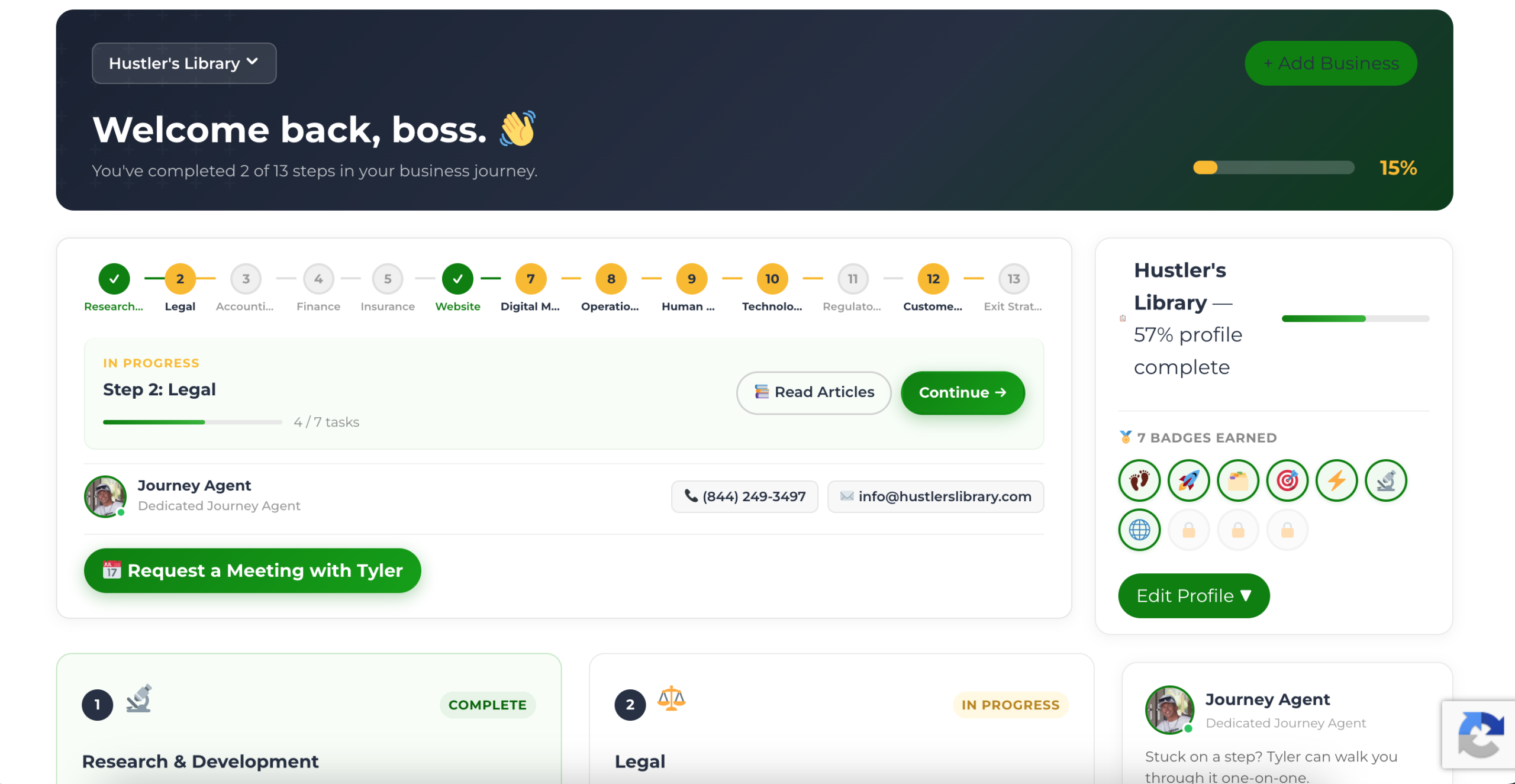
The Business Journey dashboard maps your exact position across all 13 stages. Track your progress, unlock resources for each step, and build with a framework used by thousands of founders at Hustler's Library.
No credit card required · Takes 3 minutes · Personalized to your stage