

If you’ve ever needed a flyer, a social media graphic, a pitch deck, or a simple logo and had no idea how to make one look professional, Canva was built for you. It’s a free (and freemium) design platform that has quietly become one of the most useful tools a small business owner can have in their kit.
You don’t need design experience. You don’t need Photoshop. You don’t even need a big budget. This guide covers everything you need to know to start using Canva to create marketing materials that look like a professional made them, because with the right approach, they can.
What Is Canva and Why Should Small Business Owners Use It?
Canva is a browser-based design tool that gives you access to thousands of templates, stock photos, icons, fonts, and layout tools. You can use it on a desktop, tablet, or phone. The free plan covers most of what a small business needs. Canva Pro (around $15/month) adds brand kits, premium templates, background removal, and a larger asset library.
Here’s why it matters for small business marketing: professional-looking visuals build trust. When a potential customer sees a polished social post or a clean, branded flyer, they take you more seriously. When they see something thrown together in Microsoft Word, they don’t. Canva helps you close that gap without hiring a designer for every piece of content you need.
Setting Up Your Canva Account for Business
Start by creating a free account at canva.com. Once you’re in, do these three things before you start making anything:
1. Upload Your Brand Colors and Logo
Even on the free plan, you can add your logo as an image and manually input your brand colors using their hex codes. Canva Pro has a dedicated Brand Kit feature that stores your colors, fonts, and logos in one place so you can apply them to any design with one click. If you’re on the free plan, create a simple “brand template” in your account that you duplicate whenever you start a new design.
2. Choose Your Fonts
Pick two fonts and stick with them across everything you create: one for headlines and one for body text. Canva has hundreds of fonts. A simple combination that always looks clean: a bold sans-serif for headlines (like Montserrat or Oswald) and a readable serif or neutral sans-serif for body text (like Lato or Open Sans). Consistency in fonts is one of the fastest ways to make your brand look intentional.
3. Create a Folder for Your Business
Canva lets you organize designs into folders. Set up one folder for each major content category you’ll create: social media, flyers, email headers, proposals, presentations. This saves significant time when you’re producing content regularly.
The Best Ways to Use Canva for Small Business Marketing
Social Media Graphics
This is where most business owners start, and for good reason. Canva has templates sized for every platform: Instagram posts and stories, Facebook posts and covers, LinkedIn banners, X (Twitter) headers, Pinterest pins, and more. Start with a template, swap in your brand colors and fonts, add your own copy, and you have a post that looks professional in under ten minutes.
The key to strong social graphics: keep text minimal. The visual should do the work. Use your graphic to stop the scroll; your caption handles the details. A common mistake is cramming too much text into a small square image, which makes it unreadable and easy to skip.
Flyers and Print Materials
Canva’s print templates are surprisingly versatile. You can create business cards, flyers, brochures, menus, table tents, and door hangers. Canva even has an integrated print-and-mail service so you can order physical copies directly from the platform. For local businesses that rely on foot traffic or community visibility, a clean printed flyer at a local coffee shop or community board still works better than most people expect.
Presentations and Pitch Decks
If you’ve ever sat through a pitch with a generic PowerPoint slide deck, you know how quickly bad design undermines a good idea. Canva has professional presentation templates that are a significant step up from default slideware. Use them for investor pitches, client proposals, team meetings, and sales presentations. The ability to share a Canva presentation via link (instead of emailing a file) also makes follow-up cleaner and more impressive.
Speaking of proposals, if you haven’t refined your overall proposal process yet, our guide on how to write a proposal that wins covers the structure and strategy behind closing more deals.
Email Headers and Newsletter Graphics
A branded email header makes your newsletter look intentional instead of generic. Create one master header in Canva with your logo and brand colors, then swap out the headline text for each send. Most email platforms accept image uploads directly. This small step can noticeably improve how subscribers perceive your brand.
Website and Blog Graphics
Every blog post should have a featured image, and that image should carry your brand. Instead of using generic stock photos for everything, create a simple blog post template in Canva: a consistent background, your logo in the corner, and a text overlay with the post title. Export it as a JPEG and use it as your featured image. Readers start recognizing your brand’s visual style, which builds familiarity and trust over time.
Video and Animated Content
Canva isn’t just static images. The platform supports short video creation, animated social posts, and even simple video ads. You can add animations to any text or element, use their built-in stock video clips, or upload your own footage. For short-form content (Instagram Reels intro cards, YouTube thumbnails, or promotional clips), Canva’s video tools are genuinely useful for owners without video editing experience.
Canva Free vs. Canva Pro: What Do You Actually Need?
The free plan is enough to get started. For most solo business owners or very small teams producing content sporadically, the free plan handles social graphics, basic flyers, and simple presentations without issue.
Canva Pro is worth it when you’re producing content consistently and need to maintain tight brand consistency across a team. The key Pro features that justify the cost for growing businesses:
- Brand Kit: Store logos, colors, and fonts in one place so every team member works from the same brand assets automatically
- Background Removal: Remove backgrounds from product photos or headshots in one click, with no Photoshop needed
- Magic Resize: Automatically resize a design for different platforms (create one Instagram post and instantly get a story, Facebook cover, and Twitter graphic from the same design)
- Premium Templates and Assets: Access to a wider library of professional templates, stock photos, and graphics
- Unlimited Storage: Upload and store as many brand assets as you need
If you’re managing marketing for multiple locations, a growing team, or multiple brands, Canva for Teams adds shared brand kits, approval workflows, and collaboration tools worth evaluating.
Common Mistakes to Avoid
Even with great tools, it’s easy to create mediocre-looking content. Watch out for these:
- Using too many fonts: Stick to two. Three max. More than that looks like a ransom note.
- Overloading the design: White space is not wasted space. Clean designs with breathing room look more professional than ones packed with elements.
- Ignoring contrast: Light text on a light background is unreadable. Make sure your text color and background color have enough contrast, especially for anything that might be printed or viewed on mobile.
- Using low-resolution exports for print: For anything printed, export at 300 DPI (dots per inch), not the default web setting. Canva lets you choose resolution on export.
- Skipping the brand check: Before publishing anything, ask: does this look like it came from my business? If you couldn’t tell, your audience can’t either.
Building a Simple Content Production Routine With Canva
The biggest challenge most business owners face with marketing isn’t the design itself. It’s consistency. Here’s a simple framework for making Canva a sustainable part of your marketing routine rather than something you open once every few weeks in a panic:
Batch your design work. Set aside 30-60 minutes once a week to create all the graphics you need for the upcoming week. Don’t try to create one post at a time on the day you need it. Batching is faster because you’re in design mode for an extended block rather than context-switching constantly.
Build reusable templates. For any format you use regularly (a weekly tip graphic, a quote card, a promotional post), build a master template in Canva that you just update the text and one or two images for each week. You’ll cut your design time by 70 percent on repeat formats.
Connect to your social media scheduler. Canva integrates directly with several scheduling tools, including Buffer and Hootsuite, so you can publish or schedule posts without downloading files and re-uploading them elsewhere. This cuts friction from the whole process.
If you want to think more strategically about how your marketing fits into a broader calendar, our guide on how to create a marketing calendar for your small business walks through the planning side in detail.
Using Canva AI Features
Canva has been rolling out AI-powered features that are worth knowing about. Magic Write can help you draft copy for your designs directly inside the platform. Magic Design can take a brief description and generate a full template concept. Dream Lab lets you generate custom AI images when stock photos don’t quite fit what you need.
These tools are not perfect, but they dramatically speed up the process of getting to a first draft. Use them as a starting point and then refine, rather than expecting a finished product on the first try. The SBA has additional resources on marketing and sales for small businesses if you want to go deeper on the strategy side.
The Bottom Line
Canva has democratized professional design in a way that genuinely levels the playing field for small business owners. You no longer need to choose between looking unprofessional and paying a designer hundreds of dollars for every piece of marketing content you produce. With a couple of hours of setup and a consistent weekly routine, you can produce visuals that make your business look like it’s operating at a much higher level than your budget would otherwise allow.
Start with your social media templates, get your brand colors and fonts locked in, and build the habit of batching your content creation. The results compound quickly. The biggest brands in the world obsess over visual consistency; now you can too, without a design team.
Want more tools and strategies for running a smarter small business? Join Hustler’s Library for free and get access to our full library of plain-English business guides.
Ready to Know Where You Stand?
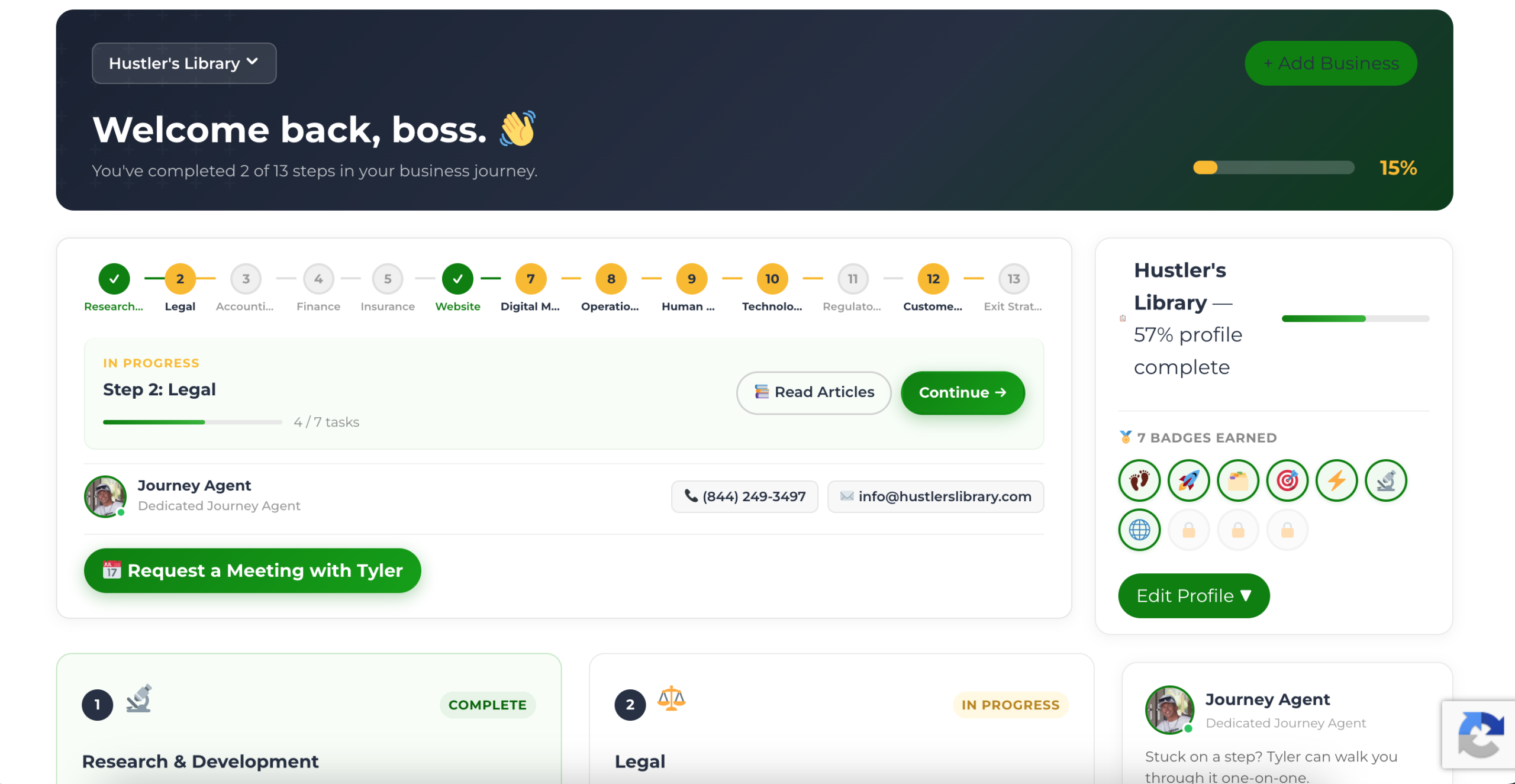
The Business Journey dashboard maps your exact position across all 13 stages. Track your progress, unlock resources for each step, and build with a framework used by thousands of founders at Hustler's Library.
No credit card required · Takes 3 minutes · Personalized to your stage