
HubSpot’s free CRM is one of the most useful tools available to small business owners, and most people barely scratch the surface of what it can do. The pipeline feature alone, when set up properly, can transform how you manage deals, follow up with prospects, and forecast your revenue for the month.
This guide walks you through the exact process of setting up a sales pipeline in HubSpot’s free tier, from logging in for the first time to having a functioning system that tells you exactly what to do every day.
Why a Pipeline Beats a Contact List
Most small business owners track leads in one of two ways: a spreadsheet or a mental model. Both break down the moment volume picks up. A pipeline is different because it organizes contacts by where they are in your sales process, not just who they are.
Instead of a flat list of names, you have a visual board showing you: who needs a first call, who is waiting on a proposal, who is in negotiation, and who just went cold. That visibility means you always know what to work on and nothing slips.
HubSpot’s free pipeline gives you that visibility at zero cost, with drag-and-drop deal management and deal amount tracking so you can see your total pipeline value at a glance.
Step 1: Create Your HubSpot Account
Go to hubspot.com and sign up for the free CRM. You can create an account with a Google login or your business email. HubSpot will ask a few onboarding questions about your role and business size. Answer them accurately so the platform surfaces relevant features, but do not feel locked in by those answers.
Once inside, you will land on the main dashboard. Navigate to the Sales tab in the top menu, then click Deals. This is your pipeline home base.
Step 2: Define Your Pipeline Stages
Before you create a single deal card, you need to define your stages. HubSpot ships with default stages (Appointment Scheduled, Qualified to Buy, Presentation Scheduled, Decision Maker Brought In, Contract Sent, Closed Won, Closed Lost) but these are built for enterprise B2B and may not match how you actually sell.
To customize:
- Click the gear icon (Settings) in the top right
- Navigate to CRM then Deals
- Click Deal Stages
- Edit, rename, reorder, and delete stages to match your process
Here are two sample pipeline setups based on business type:
Service Business Pipeline (5 stages)
- New Lead (10% probability)
- Discovery Call Booked (25%)
- Proposal Sent (50%)
- Verbal Yes (75%)
- Closed Won / Closed Lost (100% / 0%)
Product or E-commerce Pipeline (6 stages)
- Inquiry Received (10%)
- Needs Assessed (20%)
- Quote Sent (40%)
- Follow-Up Scheduled (60%)
- Order Placed (90%)
- Closed Won / Closed Lost
Assign honest win probability percentages to each stage. HubSpot uses these to calculate a weighted pipeline value so you can project monthly revenue. If your close rate from Proposal Sent is genuinely 50%, set it at 50%. Do not inflate it.
Step 3: Connect Your Email
HubSpot integrates with Gmail and Outlook directly. Once connected, every email you send and receive with a contact will log automatically to their record in HubSpot. You will also get open and click notifications so you know when a prospect read your follow-up.
To connect:
- In Settings, navigate to General then Email
- Click Connect personal email
- Follow the OAuth flow for Gmail or Outlook
Install the HubSpot Sales Chrome extension while you are at it. It adds a sidebar directly in Gmail so you can see a contact’s full CRM history, log notes, and create deal tasks without leaving your inbox.
Step 4: Create Your First Deals
Now load your pipeline. For each active prospect you are currently working:
- Click Create deal in the top right of the Deals board
- Enter a deal name (typically the prospect’s name plus the service or product)
- Set the deal stage based on where you actually are with them right now
- Enter the deal amount (what this contract is worth if it closes)
- Set a close date (your best estimate)
- Associate the deal with a contact and/or company
Do this for every single active lead. It will take 30 to 60 minutes if you have a full pipeline. That time investment pays back within days when you can see at a glance what needs attention and what is stale.
Step 5: Set Up Tasks and Follow-Up Reminders
The most powerful part of HubSpot for small business owners is not the pipeline view. It is the Tasks feature. A task is a scheduled action connected to a deal or contact that shows up on your daily to-do list.
For every deal in your pipeline, create a follow-up task:
- Type: Call, Email, or To-Do
- Due date: the date you plan to reach out next
- Notes: what you want to say or ask
Now go to Sales then Tasks each morning. That list is your daily sales to-do. Work it from top to bottom. When you complete a task, log what happened in the contact’s notes and create the next task.
This single habit, checking your task queue every morning and working through it, is how deals stop falling through the cracks. According to research from HubSpot’s sales data, 80% of sales require at least 5 follow-up attempts, but most salespeople give up after just 2. The task system forces you to stay in the game.
Step 6: Add Contacts and Companies
Beyond the pipeline, HubSpot stores your contacts and companies as searchable records. Each contact record shows: every email thread, every task, every deal associated with that person, and any notes you have logged.
Get in the habit of logging a note after every sales conversation, even just two sentences: what you talked about and what the next step is. Future-you will thank you when a prospect goes quiet for three weeks and then re-engages. You will have the full context in seconds.
To import existing contacts from a spreadsheet, go to Contacts then click Import. HubSpot accepts CSV files and will map your columns to the right fields during import.
Step 7: Use the Deals Board Daily
Once your pipeline is loaded and your tasks are set, open the Deals board at the start of each week and ask these four questions:
- Which deals have been sitting in the same stage for longer than two weeks?
- Which deals have a close date that has already passed?
- Which deals have no activity logged in the last 7 days?
- What is my total weighted pipeline value versus my revenue goal this month?
Deals that stall die. The pipeline view makes stalls visible so you can either re-engage or move the deal to Closed Lost and stop wasting energy on it.
For guidance on what to do when a deal goes cold, see our breakdown of how to handle a lost deal and actually win it back later. And for building the initial discipline around deal creation and pipeline stages, our post on how to run a discovery call that sets up the close walks through what each stage should actually look like in practice.
Free vs Paid: When to Upgrade
HubSpot’s free CRM covers everything in this guide. You hit a wall when you need:
- Email sequences: automated multi-step follow-up cadences (Sales Hub Starter, $15/user/mo)
- Snippets and templates with performance data: see which email templates close the most deals (Starter)
- Lead scoring: automatically rank leads by engagement (Professional, $90/user/mo)
- Forecasting: team-level revenue predictions with deal confidence ratings (Professional)
Most solo operators and small teams of 2 to 5 can run on free for 12 to 18 months before needing to upgrade. Start there and upgrade only when a specific feature is blocking you.
Recommended Reading
Predictable Revenue by Aaron Ross is the foundational book on building a sales pipeline and prospecting system that feeds it consistently. If you are setting up HubSpot to support outbound sales, read this alongside your CRM setup.
Your Pipeline Is Ready. Now Work It.
A pipeline that is set up but not worked is just a fancy contact list. The system only creates results when you open it daily, log your activity, and follow through on your tasks. That discipline compounds. Deals close faster. Nothing goes cold by accident. You always know your number.
Set it up today. Work it tomorrow. Adjust your stages after 30 days when you see where deals actually get stuck. That is the full loop.
Ready to build the sales system your business deserves? Join Hustler’s Library free and get access to the full resource library.
Ready to Know Where You Stand?
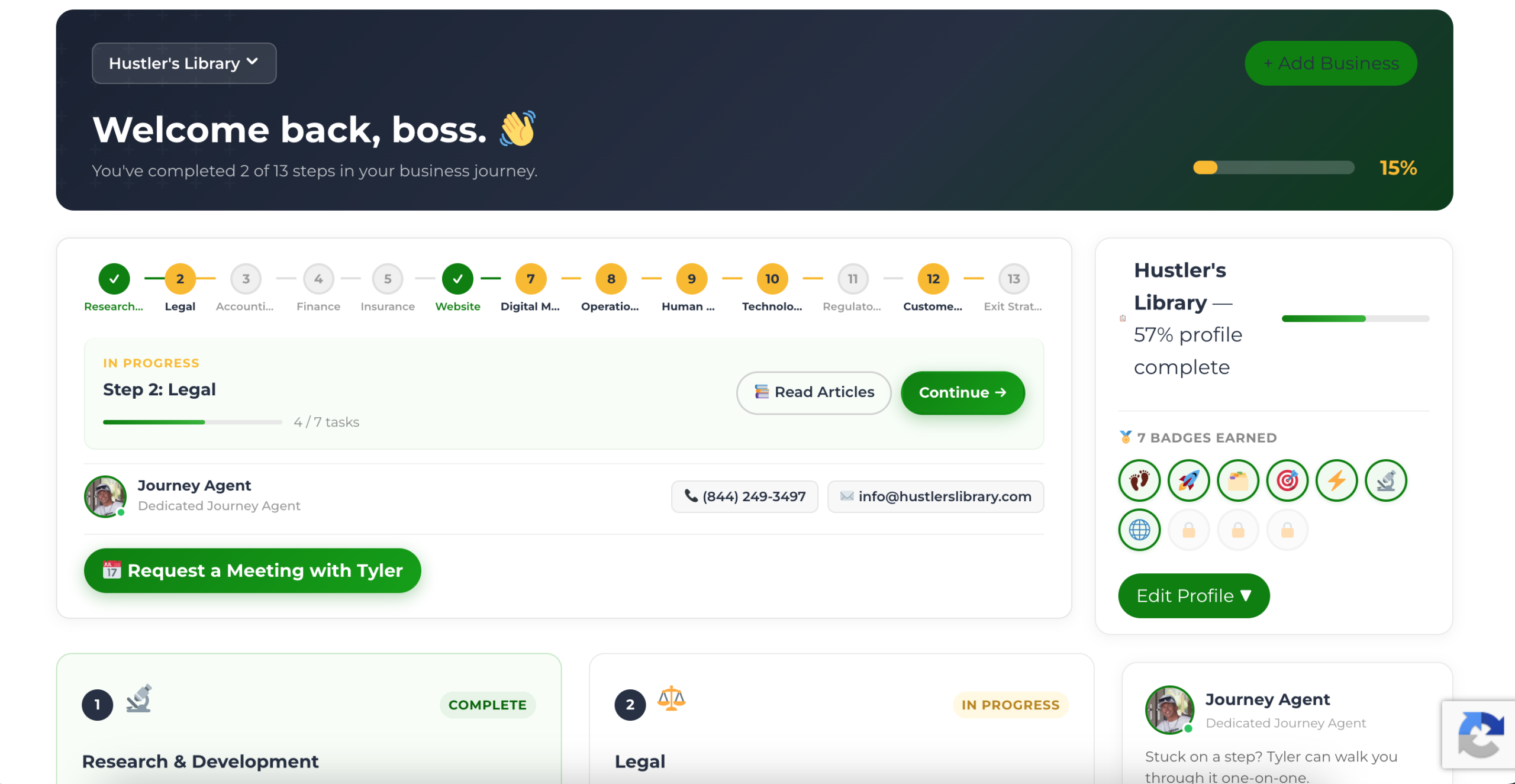
The Business Journey dashboard maps your exact position across all 13 stages. Track your progress, unlock resources for each step, and build with a framework used by thousands of founders at Hustler's Library.
No credit card required · Takes 3 minutes · Personalized to your stage