
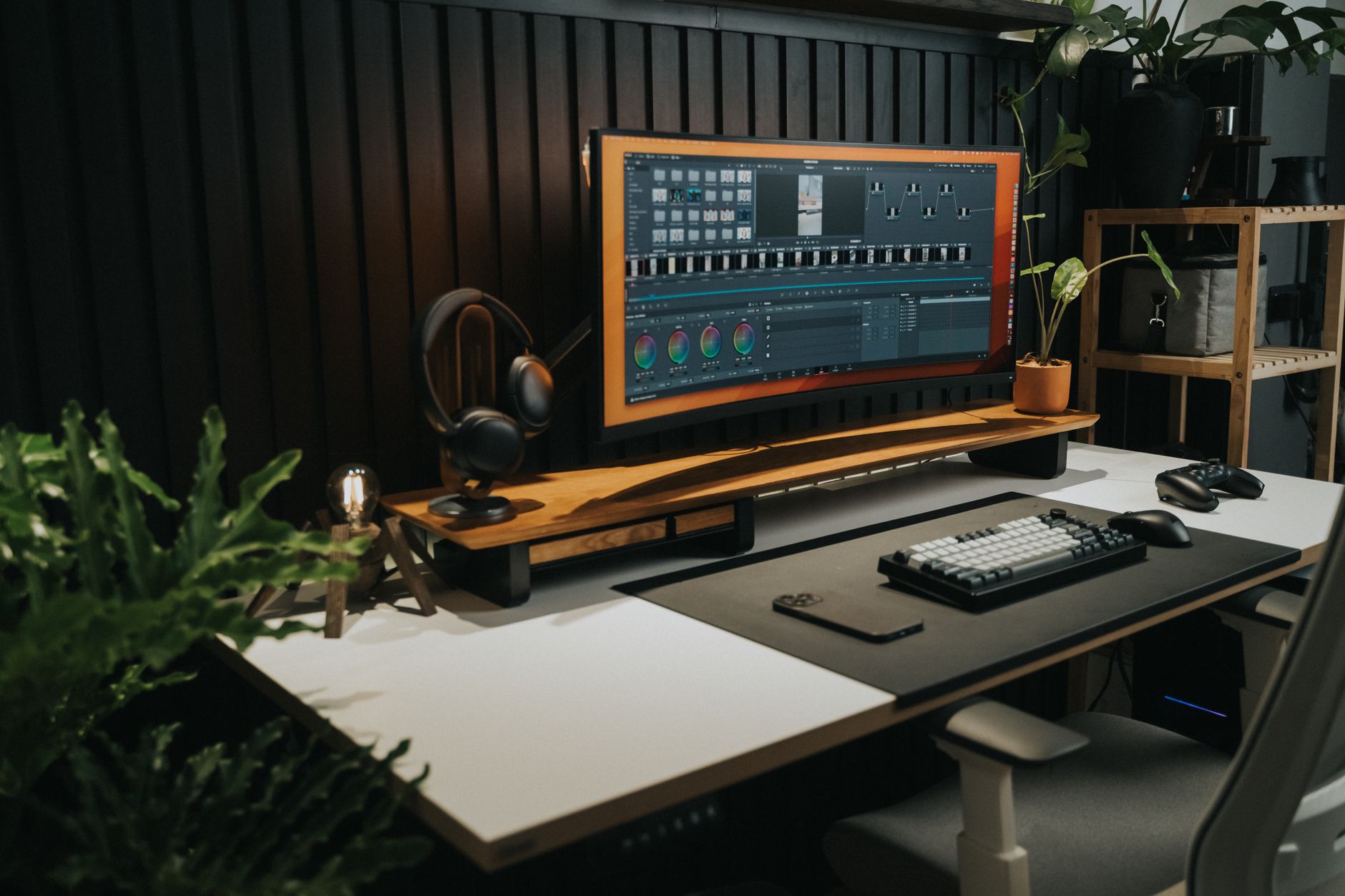
The monitor question trips up more entrepreneurs than almost any other home office decision. Not because monitors are complicated, but because the options have multiplied while the advice online has stayed stuck in recommendations from three years ago.
Here’s the actual landscape in 2026: you can get a competent 27-inch 1440p monitor for under $250, a well-reviewed ultrawide for under $400, and a dual-monitor setup for under $350 total if you shop right. The question isn’t which is “best.” It’s which configuration matches how you actually work.
This guide breaks down all three setups with specific product recommendations, honest trade-off assessments, and everything you need to make the right call for your desk.
The Case for Each Setup
Single 27-Inch Monitor: The Focused Worker’s Choice
A single 27-inch monitor at 1440p resolution (also called 2K or QHD) is the baseline worth starting at. It’s the configuration that forces you to manage what’s on screen rather than spreading everything across real estate and kidding yourself that you’re being productive.
The best value in this category right now is the LG 27GP850-B at around $229-$249. It’s a 165Hz 1440p IPS panel with Nano IPS technology. For entrepreneurs doing mostly productivity work, video calls, and documents, 165Hz is overkill. But the IPS panel means accurate colors, good viewing angles, and a display that looks sharp across everything from spreadsheets to video calls. The stand has full ergonomic adjustment, which matters more than most people admit.
Check current pricing on LG 27GP850-B on Amazon
If you want to go a tier down, the ASUS ProArt PA279CRV targets creative professionals at around $399 but is worth mentioning because the color accuracy spec is in a different league. For anyone doing design work, video editing, or anything where color fidelity matters, the ProArt line earns its premium.
Check current pricing on ASUS ProArt PA279CRV on Amazon
The single-monitor trade-off is obvious: limited screen real estate. If your workflow involves keeping a reference document open alongside your working window, or if you take calls while navigating other software, one monitor is frustrating. You’ll spend more time alt-tabbing than you should.
Ultrawide Monitor: The Deep Focus Alternative
An ultrawide is not two monitors. That point is worth making clearly because people make this mistake constantly. An ultrawide is one seamless display, typically 34 inches at a 21:9 aspect ratio. No bezel in the middle. No cable managing two units. One monitor arm. One input.
The LG 34WP65C-B is the 34-inch curved ultrawide that consistently earns its recommendation at around $349-$399. It’s a 1440p VA panel with a mild curve (1500R) that makes the edges readable without distortion. The 160Hz refresh rate is again marketing for a productivity audience, but the panel is good. Colors are accurate enough for most business use, and the curve actually helps with reading text at the edges.
Check current pricing on LG 34WP65C-B on Amazon
For the premium ultrawide category, the Dell UltraSharp U3423WE at around $799-$899 is what you buy when you’re past the “is this worth it” question. IPS Black panel technology, built-in USB-C hub that actually works, Thunderbolt 4 passthrough, KVM switch for managing multiple computers. It’s a hub as much as it is a monitor. For entrepreneurs running multiple machines or anyone who wants to clean up their desk cable situation, the built-in hub justifies a significant portion of the price premium.
Check current pricing on Dell UltraSharp U3423WE on Amazon
The ultrawide trade-off: most video conferencing software, web browsers, and business applications are not designed for ultrawide ratios. You’ll spend time in settings managing how windows snap. Some software just opens in the center third of the screen and refuses to fill the space usefully. That frustration is real, and it’s worth knowing about before you commit to the format.
Dual Monitor Setup: The Multitasker’s Standard
Dual monitors remain the most popular configuration among entrepreneurs who do high-context-switching work, and the reason is simple: two separate screens for two separate workflows. Email left, documents right. Video call on one screen, notes on the other. CRM open on the left, proposal draft open on the right.
The best budget dual setup in 2026 is two AOC 27B2H units at about $149-$159 each. That’s a 27-inch 1080p IPS panel that’s frameless on three sides, making the bezel in the middle of a dual setup nearly invisible. At $300-$320 for the pair, it’s the most accessible way to run a real dual-monitor desk. The 1080p resolution on 27 inches is slightly softer than 1440p, but for most text and web-based work, it’s fine.
Check current pricing on AOC 27B2H on Amazon
Moving up, two LG 27GP850-B units (mentioned above) gives you a dual 1440p setup for around $500-$520. That’s the sweet spot for entrepreneurs who spend full days at the desk and want text that’s genuinely sharp. If you’ve ever sat at a 1440p monitor for a few days and then gone back to 1080p, you’ll understand why the upgrade is hard to undo.
Check current pricing on LG 27GP850-B on Amazon
Dual setup trade-offs: you’ll need a monitor arm that supports two units, or two individual stands, and either way it’s more desk real estate management. The bezel in the middle is a minor annoyance that becomes invisible within a week. Setup takes longer. Cable management requires actual effort. For many entrepreneurs, none of that matters because the productivity gain from having true dual-display real estate outweighs all of it.
Monitor Arms: Don’t Skip This
A monitor setup without a proper arm is a setup you’ll eventually fix. The stands that come with most monitors have limited adjustment, waste desk space, and make ergonomic positioning harder than it needs to be.
The Ergotron LX Single Monitor Arm at about $149 is the standard recommendation for a reason. It handles monitors up to 34 inches and 25 pounds, has a gas spring mechanism that makes adjustment genuinely easy, and holds position without drift. It’s not cheap. It’s worth it.
Check current pricing on Ergotron LX Single Arm on Amazon
For dual setups, the Ergotron LX Dual Stacked Arm at around $199-$229 handles two monitors up to 25 pounds each. The stacked option puts one monitor slightly above the other, which some people prefer over side-by-side.
Check current pricing on Ergotron LX Dual Arm on Amazon
Complete Product List: What to Order
Here’s a full shopping reference organized by budget tier:
Budget Single Setup (~$250 total)
Monitor: LG 27GP850-B 27-inch 1440p (~$229) + Amazon Basics Single Monitor Arm (~$35)
Budget Dual Setup (~$340 total)
2x AOC 27B2H 27-inch 1080p (~$154 each) + Ergotron LX Dual Arm (~$229)
Mid-Range Ultrawide Setup (~$550 total)
LG 34WP65C-B 34-inch Ultrawide (~$379) + Ergotron LX Single Arm (~$149)
Premium Dual 1440p Setup (~$730 total)
2x LG 27GP850-B 27-inch 1440p (~$249 each) + Ergotron LX Dual Arm (~$229)
Premium Ultrawide Hub Setup (~$950 total)
Dell UltraSharp U3423WE 34-inch Ultrawide (~$849) + Ergotron LX Single Arm (~$149)
The Honest Verdict
If you’re new to a multi-monitor setup and want to start without overthinking it, buy two AOC 27B2Hs and an Ergotron dual arm. Your total is under $550 and you get a real dual-display productivity setup that will serve you for years.
If you have the budget and want fewer decisions, the Dell UltraSharp U3423WE ultrawide is the one purchase that replaces your monitor, your USB hub, and your cable management headache simultaneously.
For more on building out the full home office setup, our guides on Best Noise-Canceling Headphones and How to Design a Workspace That Boosts Productivity round out the rest of the desk.
For deeper independent monitor testing and panel measurement data, RTINGS.com publishes the most thorough monitor reviews available, with actual measurement data rather than just impressions.
Building a business workspace that works as hard as you do? Join Hustler’s Library free for more gear guides, tools, and resources for entrepreneurs.
Ready to Know Where You Stand?
The Business Journey dashboard maps your exact position across all 13 stages. Track your progress, unlock resources for each step, and build with a framework used by thousands of founders at Hustler's Library.
No credit card required · Takes 3 minutes · Personalized to your stage